
























































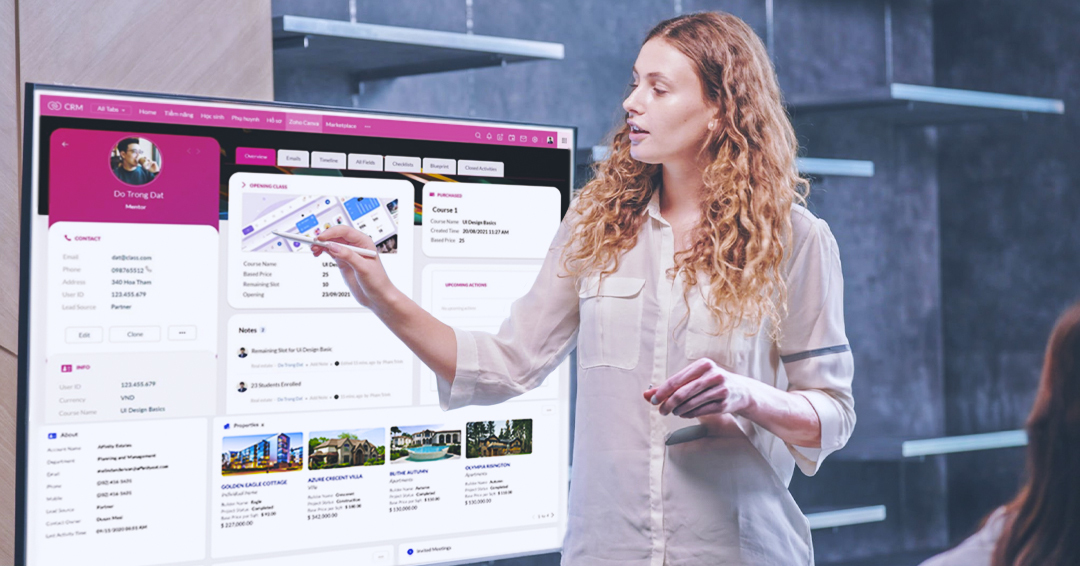
Explore the Power of Zoho CRM Canvas to Enhance Your CRM Experience
Zoho CRM Canvas combines the powerful customer relationship management capabilities of Zoho with Canva’s user-friendly graphic design features. Zoho CRM Canvas is a no-code design studio that lets you move beyond standard layouts, tailoring the appearance and functionality of your Zoho CRM interface to fit your unique needs.
Zoho CRM is not just about storing records, it is about presenting information in a way that matches how your team actually works. Different teams prefer different ways of viewing data, some need structured tables, others prefer visual boards or branded layouts. With List, Kanban, and Canvas views, Zoho CRM allows you to choose how records are displayed, managed, and analyzed. This flexibility helps businesses align their CRM interface with daily workflows, user roles, and operational priorities.
Let’s dive in and elevate your CRM experience with the power of Canvas!
With Canvas, organizations can adjust the layout, design, and features of Zoho CRM to create a more customized and efficient workspace for their teams.
Zoho CRM’s Canvas view gives you flexible layout options to present records visually. Each layout supports a different way of displaying information based on how your team works.
Custom List View: Displays records stacked vertically with ample row space to showcase logos, images, key details, and action buttons in a clean, uncluttered format.
Tile View: Presents records as compact square or rectangular tiles arranged like a visual lineup, ideal for modules such as Accounts, Products, or Contacts.
Table View: Shows records in a tabular format similar to list view, with the added ability to apply single or alternating row colors for better visual distinction.
Zoho CRM Module Views – Quick Overview
Zoho CRM provides three distinct module views to help you organize and work with your data effectively:
- List View
- Kanban View
- Canvas View
Each view serves a different working style and reporting need.
1. List View
What it is:
A structured, tabular representation of records sorted using defined criteria.
How it works:
- Displays records as rows with columns
- Allows column freezing for easier navigation
- Supports quick sorting and record management
Best used for:
Detailed data review, bulk operations, and structured record comparison.
2. Kanban View
What it is:
How it works:
- Groups records based on selected fields such as status, lead source, or industry
- Displays records in categorized columns
- Helps visually track movement and progress
Best used for:
3. Canvas View
What it is:
How it works:
- Add design elements and brand styling
- Rearrange record presentation
- Customize layouts based on business needs
Available layouts:
- Custom List View
- Tile View
- Table View
Best used for:
Queries in Canvas View
What Queries Can Do
- Fetch data from CRM or external systems
- Display related data within records
- Pull data for:
- Individual records in Record Detail Canvas
- Multiple records in List View Canvas
Practical Example
In a Contacts List View, you can use Queries to retrieve related Account information for all listed contacts at once.
This improves visibility without switching between modules.
Practical Use Cases for Canvas Module Views
Zoho CRM’s Canvas layouts can be applied across industries based on how information needs to be viewed and managed. Below are common business scenarios and the most suitable view for each.
1. Schools and Educational Institutions
Recommended View: Tile View
- Student databases require quick visual identification.
- Tile view helps display each student as a distinct card.
- Easy differentiation using images and key details.
- Supports systematic browsing without clutter.
2. Real Estate Firms
Recommended View: Tile View
- Ideal for showcasing property listings visually.
- Each property can display an image, price, and essential details.
- Creates a clean, portfolio-style layout.
- Enhances browsing experience for sales teams or portal users.
3. Lead Management
Recommended View: Custom List View
- Helps sales teams view complete lead context at a glance.
- Displays profile image, contact details, source, tags, score, and status.
- Can include activities, visit scores, and record owner information.
- Structured vertically for clarity while minimizing clutter.
4. Inventory Management
Recommended View: Table View
- Suitable for stock tracking and demand monitoring.
- Spreadsheet-style structure supports large datasets.
- Displays quantities and product details clearly.
- Enables accurate stock visibility for decision-making.
Canvas Module View Builder – Overview
Canvas acts as a visual design studio within Zoho CRM, allowing you to customize how module data is presented. It applies to both record detail pages and module views, though the focus here is module view customization.
The builder is structured around three main components:
Data
- Includes CRM fields and lookup module fields
- Supports related lists, buttons, and module actions
- Drag-and-drop placement for layout flexibility
Elements
- Sections, tabs, tables, and text blocks
- Images, icons, lines, and action buttons
- Used to structure and compartmentalize information visually
Style
- Customize background colors and borders
- Adjust padding, margins, and corner radius
- Add shadows and refine typography
- Configure font types and hover effects
Generate Canvas Templates Using Zia
Zia allows you to create Canvas list view templates directly from an image. Instead of designing layouts from scratch, you can upload a visual reference and let Zia recreate it as a CRM-ready template.
How It Works
- Upload an image representing a list view layout, this can be a mock-up, screenshot, or printed layout photo.
- Resize the image using the slider in the top bar if needed.
- Once uploaded, the new Canvas view appears as Processing.
- You receive a notification when the template is ready.
Zia detects layout components such as text blocks, sections, and visual groupings, then automatically builds a structured Canvas view. You can edit and refine it like any manually created layout.
Field Mapping with Zia
Zia also extracts text from the image and suggests CRM field mappings.
You can:
- Manually map each detected element
- Automatically associate all detected fields
- Show all field labels
- Filter for unmapped fields only
If multiple text snippets belong together, such as a label and its value, you can combine them to structure the data properly.
Managing Canvas Templates as an Admin
All Canvas templates created in the organization appear as line items on the Canvas page.
Template Organization
- List View Tab: Contains module view templates
- Details Page Tab: Contains record detail page templates
Admin Actions
Admins can:
- Create new list view templates
- Sort templates by module or view
- Manage Canvas rules
- Clone, preview, edit, or delete templates
- Activate or deactivate templates
Switching Between Module Views
Users can switch between different module layouts based on preference.
Available Views
- List View
- Kanban View
- Canvas Custom List View
- Tile View
- Table View
Steps to Switch
- Go to the desired module
- Click the module view icon at the top-right
- Select the preferred view from the dropdown
Quick Tips to Work Faster with Canvas
By now, you’ve seen how easy Canvas is to use. These small tips will help you move even quicker and design better layouts.
Create templates directly from a module
If a specific Canvas view hasn’t been created yet, you don’t need to start from scratch elsewhere. Click the module view button at the top right, select the Canvas view you need, and hit Create view. You’ll be taken straight to the Canvas builder.
Insert data without dragging fields
Instead of searching for fields in the data panel and dragging them in, just right-click on the template. Go to Insert and choose Field or Action. It saves time and keeps your flow smooth.
Apply conditional styling
Set rules to change how a component looks based on criteria. You can adjust font size, color, or other visual elements dynamically depending on the data.
Use fixed or fluid components wisely
A fluid component expands to show the full text. A fixed component keeps text within a defined space, even if it cuts off extra characters. Choose based on how structured you want your layout.
Copy and paste styles
Avoid formatting the same style again and again. Right-click a styled component, select Copy style, then right-click the target component and choose Paste style.
Lock components while editing
Lock elements to keep them in place as you edit other parts of the template. This prevents accidental movement and keeps your layout aligned.
Show or hide field labels
Labels display the field name. You can hide them if you only want to show values, which helps save space and keeps the design clean.
Adjust label alignment
Set text alignment to left, center, or right based on your layout needs. Small alignment changes can make the design look more balanced.
Benefits of Zoho CRM Canvas
1. Tailored User Interface
Canvas revolutionizes CRM interface design with a drag-and-drop editor, enabling users to personalize their interfaces effortlessly. With Zoho CRM Canvas, businesses can easily tailor their CRM interface to their needs, providing a more adaptable and user-friendly experience than the standard interface.
2. Aesthetic and Brand Integration
Zoho CRM Canvas lets businesses incorporate their branding into the interface, creating a consistent brand experience across all customer interactions. This enhances visual appeal and reinforces brand identification and customer loyalty.
3. Streamlined Navigation
Zoho CRM Canvas simplifies navigation by enabling users to create custom paths that reduce the number of clicks and steps required to access essential information. This streamlines navigation, increases efficiency, and improves the user experience, making it easier for users to find the information they need quickly.
4. Enhanced User Interaction
The Canvas interface boosts user experience with visually appealing and easy-to-use features. The interface can be customized with different views and layouts to suit each user’s specific needs. This enhances efficiency, decreases the learning curve, and results in a more user-friendly CRM experience.
Conclusion
In an era characterized by rapid business change, it’s vital to have customer relationship management (CRM) systems that offer a user interface (UI) that can be tailored to your needs and is easy to use.
Zoho CRM Canvas is a powerful and flexible tool that enables businesses to create a unique and efficient CRM interface. By leveraging Canvas’s customization features, organizations can enhance the user experience, boost efficiency, and keep pace with evolving business demands.
Canvas goes beyond basic record display by turning Zoho CRM into a customizable visual workspace. From structured list layouts to image-based tile views and dynamic query-driven data, it allows teams to design views that reflect real business needs. Combined with Zia-powered template generation and administrative controls, Canvas gives both users and admins full control over how information appears and functions. When used thoughtfully, it improves visibility, clarity, and efficiency across modules without changing the underlying data structure.
Why Xponential Digital?
Partnering with Xponential Digital, an authorized Zoho Partner, can help businesses overcome obstacles and maximize the power of Zoho CRM. Our tailored Zoho Consultation services enable companies of all sizes to simplify intricate processes and strengthen their customer connections, driving growth and success.







 Xponential Digital